
It is crazy how fast Gen-AI for coding has been advancing recently, with game-changing tools coming out on a weekly basis. Thanks to that, my own workflow has evolved dramatically in the last few months. It feels like yesterday I was copying and pasting code from a ChatGPT window, and now I’m doing ‘vibe coding’ with CLI like Claude Code and Gemini CLI. Today, with some help from Gemini, I successfully installed these state-of-the-art tools on a HPC cluster, so that I don’t need to install them on my local computer. Here’s how I achieve this. It includes the initial Node.js installation, Gemini CLI and Claude Code installation.
Part 1: Install a Compatible Node.js Version
Before installing Claude Code and Gemini using their official command lines, you have to install Node.js v18 or later. However, running the official Node.js build failed as my HPC system’s library is old:
node: /lib64/libc.so.6: version 'GLIBC_2.28' not found (required by node)
The solution is to find a version of Node.js that was compiled for an older system from this Node.js Unofficial Builds page.
- First we need to find the GLIBC version for the HPC using
ldd --version. My system returnsGLIBC 2.17. - Navigate to the Node.js Unofficial Builds page.
- Click into the directory for the Node.js version you want (e.g., v20.15.1/).
- Find the file that matches your architecture (linux-x64) and your GLIBC version. For example, if your system has GLIBC 2.17, download the file named
node-v20.15.1-linux-x64-glibc-2.17.tar.gzfrom this page. - Use wget on your HPC to download it to your home directory.
- Use
tar -xf *.tar.gzto untar the nodejs file and rename it to something simpler likenodejs. - Add custom Node.js installation to PATH in the
~/.bashrcfile:export PATH=$HOME/nodejs/bin:$PATH. source ~/.bashrc
Part 2: Install the Google Gemini CLI
- I had some issues with the installation command
npm install -g @google/gemini-cli, so I used the command provided from here:npx https://github.com/google-gemini/gemini-cliand it worked. - Then when you try to start Gemini, there’s an authentication process. Usually a webpage will pop up and you sign in. However, now we are working with an HPC, which doesn’t have a smooth link to web pages.
- I did see the Google login page opened on my local web browser. I signed in and granted permissions.
- Here’s a tricky part, your browser will redirect to a localhost URL and show an error. This is expected. Copy this entire localhost URL.
- Open another terminal on the HPC (while leaving the Gemini CLI running in the first one). Paste the full localhost URL you copied from your browser into the following command:
curl "http://localhost:XXXXX" - The terminal running gemini will now be authenticated.
- One more issue is that the
npxcommand needs to be executed every time you log into the HPC. So I added a line to create an alias in the~/.bashrc:alias gemini='npx https://github.com/google-gemini/gemini-cli'. The good news is that you don’t need to be authenticated again.
Part 3: Install Claude Code
- Claude Code can be installed without error message using
npm install -g @anthropic-ai/claude-code. - However, when running it using
claudecommand, it failed due to a shebang incompatibility as the old system on the HPC doesn’t know the-Soption. To solve this, Gemini helped me create a wrapper script in$HOME/bin/claude-exec:
#!/bin/bash
# This script acts as a modern replacement for 'env -S' on older systems.
# It correctly calls Node.js with multiple arguments before running the main script.

# 1. The full path to your custom Node.js installation
#    (You can verify this with 'which node')
NODE_EXEC_PATH="$HOME/nodejs/bin/node"

# 2. The full path to the *real* claude script
#    (You can verify this with 'which claude')
CLAUDE_SCRIPT_PATH="$HOME/nodejs/bin/claude"

# 3. Execute Node.js with the required options, the claude script,
#    and pass along any other arguments from the command line ("$@")
exec "$NODE_EXEC_PATH" --no-warnings --enable-source-maps "$CLAUDE_SCRIPT_PATH" "$@"
-
Then add an alias to
.bashrcfile:alias claude='$HOME/bin/claude-exec'. -
The authentication process is the same. Since Claude Code was installed permanently via
npm(unlike Gemini CLI which usesnpxand re-installs each time), you only need to install it once. -
There’s a good tool bar to help you lively tracking how much you spent on Claude Code. I used tmux to show it at the bottom of my terminal.
Additional notes about using PNNL’s Claude API
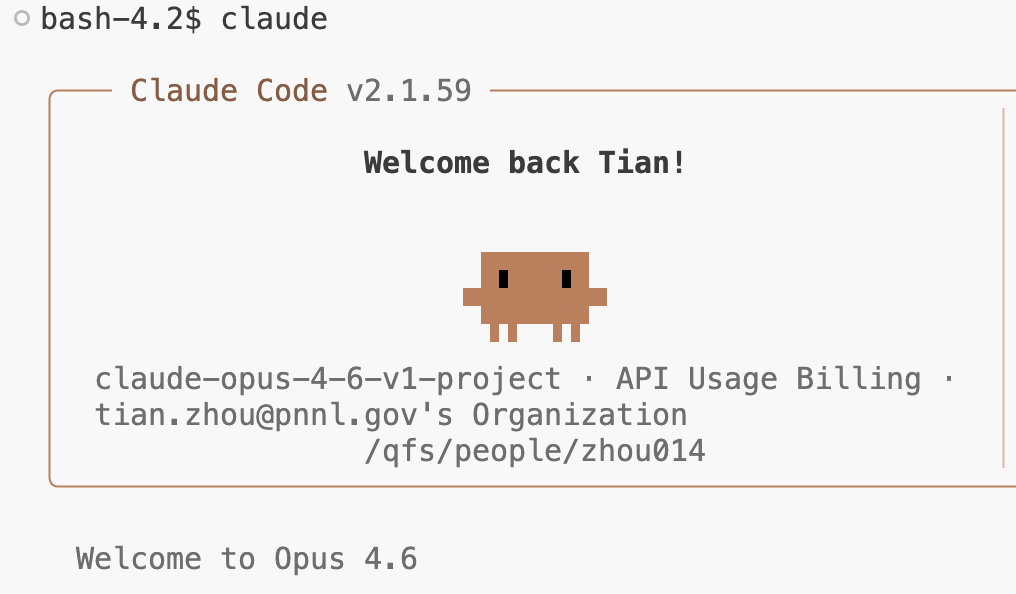
Instead of using Claude Code or Gemini CLI as a paid subscriber, PNNL’s AI Incubator’s API Key Depot provides a range of APIs for different models including GPT-5, Claude Opus 4.6, Sonnet 4.5, Grok 4, and more for staff to use. To call these APIs for Claude Code, just simply update the ~/.claude/settings.json to include the API (either $50 birthright API or project API) and the model name you want to use:
 {
  "env": {
    "ANTHROPIC_BASE_URL": "https://ai-incubator-api.pnnl.gov",
    "ANTHROPIC_API_KEY": "YOUR-API-GOES-HERE",
    "ANTHROPIC_DEFAULT_SONNET_MODEL": "claude-sonnet-4-5-v1-project",
    "ANTHROPIC_DEFAULT_OPUS_MODEL": "claude-opus-4-6-v1-project",
    "ANTHROPIC_DEFAULT_HAIKU_MODEL": "claude-haiku-4-5-v1-project"
  },
  "model": "claude-opus-4-6-v1-project",
  "availableModels": [
    "claude-opus-4-6-v1-project",
    "claude-sonnet-4-5-v1-project",
    "claude-haiku-4-5-v1-project"
  ]
}
Then when you fire the Claude code from the terminal, you can see what model you are using and you are using PNNL’s API for the session.
Additional notes about using Codex through PNNL’s ChatGPT Enterprise subscription
In Feb. 2026, the White House issued an order to ban Anthropic’s service from all federal agencies. While we are still allowing using Claude Code here in PNNL as of today (3/31/2026), some labs (e.g. LANL, SNL) have already received orders to stop using their products. As a mitigation plan, I purchased ChatGPT Enterprise through PNNL’s APP store. It is very straightforward to install it on HPC and local machine following their online tutorial. Simply activate it as a paid subscriber, and you can use Codex as an alternative to Claude Code.
Loading comments...